
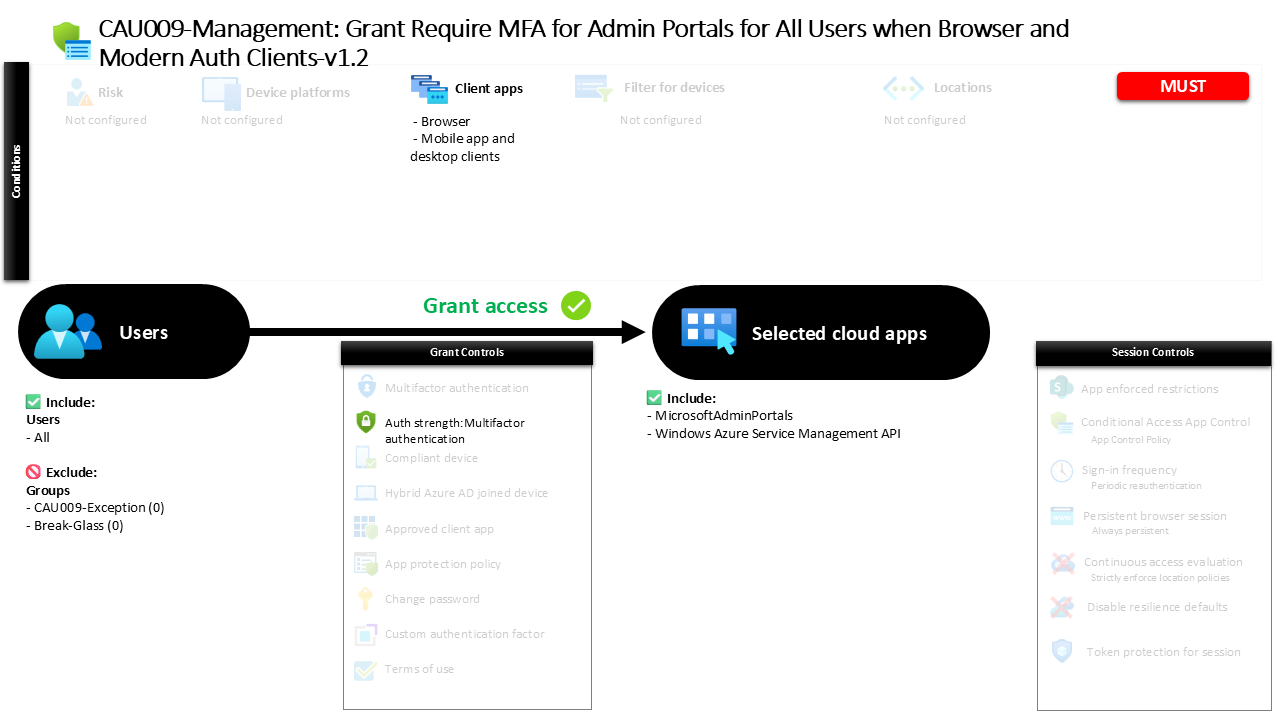
Conditional Access Admin Portals MFA Protection CAU009 Management Grant Require MFA for Admin Portals for All Users when Browser and Modern Auth Clients
Introduction
Conditional Access admin portals MFA protection exists for one simple reason: administrative interfaces represent some of the most powerful entry points in any Microsoft cloud environment. When a user signs in to manage identities, configure services, or adjust tenant-wide settings, the impact of a compromised account can be immediate and far-reaching. Security architects therefore treat administrative portals differently from normal application access.
This policy addresses that challenge by ensuring that when users reach Microsoft administrative portals through browsers or modern authentication clients, identity verification must meet multifactor authentication requirements. The goal is not to restrict productivity but to ensure that access to high-impact management interfaces is always backed by strong authentication.
By focusing specifically on administrative portals and the authentication strength required to reach them, this Conditional Access design introduces a security checkpoint exactly where risk is highest. It reflects a common Zero Trust principle: when the potential blast radius of an action increases, the confidence in the user’s identity must increase as well.

What This Conditional Access Policy Does
Think of this policy as a security guard standing in front of the doors that lead to administration and management functions. When a user tries to reach one of the targeted admin services, the policy checks whether that sign-in falls within scope. If it does, the user must meet a stronger authentication requirement before access can continue. In this design, that stronger requirement is the built-in authentication strength for multifactor authentication.
What makes the design easy to understand is that it is focused and direct. It is not driven by location, device risk, sign-in risk, or platform-specific conditions. It is centered on the value of the application being accessed. If the sign-in is headed toward the admin portals in scope, and it comes through the client app types this policy covers, the policy requires MFA.
Who the Policy Applies To
The policy is broadly scoped to all users. That means the design is not limited to named administrators in the user targeting itself. Instead, it assumes that anyone who reaches these management surfaces should face a stronger access control requirement.
There are no individually excluded users, no included groups, and no included or excluded directory roles defined in the policy details. There are, however, two excluded groups. Their identifiers are 27fdc334-6de4-489f-92b8-0f81362a9b41 and 7395911d-d629-432d-9ef6-5ae6b40ca78f. Those IDs cannot be translated into friendly names from the policy details alone, so they should be treated as known exceptions whose business purpose would need to be confirmed elsewhere. Guest or external user targeting is also not specifically configured here.
What Apps and Services the Policy Protects
This policy protects Microsoft admin portals and one additional application represented by the identifier 797f4846-ba00-4fd7-ba43-dac1f8f63013. The admin portal target is clear and tells the main story of the policy: it is meant to protect management-level access rather than everyday productivity scenarios. The second application cannot be translated into a friendly service name from the policy details alone, so it should be described simply as an additional targeted cloud app.
There are no user actions in scope and no authentication context references in scope. That means the design is not trying to protect a special action like device registration or a custom authentication context. It is focused on direct access to specific cloud applications and management surfaces.
Platforms, Devices, and Client Apps in Scope
This design does not restrict access by operating system because no device platform filter is defined. In practice, that means the policy is not limited to Windows, macOS, iOS, Android, or Linux as separate paths. The deciding factor is not the platform itself, but whether the sign-in is headed to one of the targeted apps through one of the client app types in scope.
The client app scope is very clear. The policy applies to browser sign-ins and to mobile and desktop clients that use modern authentication. There is no legacy authentication condition present. There is also no device filter, no device state condition, and no compliance-based device requirement in the policy design, so this is not an Intune compliance or compliant device policy. It is an MFA-based access control for selected admin-related services.
How Access Is Decided
Access is decided through an authentication strength requirement. More specifically, the policy uses the built-in strength called Multifactor authentication, which means the user must satisfy an MFA-capable sign-in method or method combination before access is granted. The policy details show a range of allowed combinations, including Windows Hello for Business, FIDO2, certificate-based multifactor options, device-based push, Temporary Access Pass, and several password-plus-second-factor combinations such as Microsoft Authenticator push, software OATH, SMS, and voice.
The grant operator is set to OR, but there are no other built-in grant controls, custom authentication factors, or terms of use configured alongside it. So in plain business language, the real decision is simple: if the sign-in falls within scope, the user must satisfy the MFA authentication strength to get through. There are no session controls added on top.
What the User Experience Looks Like During Sign-In
A user starts by opening a Microsoft admin portal, or the other targeted application, from a browser or a modern mobile or desktop client. Microsoft Entra ID then checks whether that sign-in matches the policy scope. Since the user targeting is broad, most users are included unless they belong to one of the excluded groups.
If the sign-in matches, the user is prompted to complete a multifactor authentication step using one of the approved methods. For the user, the experience is straightforward: access to this management area requires a stronger proof of identity than a password alone. If the user completes that stronger sign-in successfully, access continues. If not, the requirement is not met and the journey stops there.
Why This Policy Matters for Security and the Business
This policy matters because admin portals are high-value targets. They are the places where sensitive settings can be changed, identities can be managed, and broad control over Microsoft 365 security can exist. A password on its own is not enough protection for that kind of access. By requiring MFA, the organization reduces the risk of compromised credentials being used to reach the control plane of the environment.
From a business perspective, this is a strong example of practical Zero Trust thinking. It protects critical access paths without depending on location rules or device management maturity. That makes it valuable even in environments that are still building out Intune compliance or broader endpoint controls. It is a focused identity and access management measure that helps reduce exposure around the most sensitive parts of Microsoft Entra ID and Microsoft 365 administration.
Is This a Foundational or Must-Have Policy?
Yes, this should be seen as a must-have control. The policy is designed to place MFA in front of admin portals and related management access for a very broad user scope, which is exactly the kind of baseline protection most organizations should have in place for administrative surfaces. It protects high-impact access paths and does so with a clear, widely understood control that directly reduces the risk of password-based compromise.
What supports that conclusion is the combination of broad user targeting, admin-focused application scope, and a direct MFA requirement. This is not a niche refinement or an advanced edge-case policy. It is foundational Conditional Access design aimed at one of the most important areas in Microsoft 365 security.
Important Design Choices and Things to Notice
One important design choice is that the policy targets all users rather than specific admin roles. That may seem broad at first glance, but it makes sense because the protection is tied to the application being accessed. In other words, the policy assumes that if someone is reaching an admin portal, the access itself deserves stronger protection regardless of how the user was originally categorized.
Another point to notice is the presence of two excluded groups whose names are not available from the policy details alone. Those exclusions matter because they create exceptions to what is otherwise a broad control. It is also worth noticing what is not here: there are no location conditions, no risk conditions, no device compliance dependency, no hybrid join dependency, and no session controls. This makes the design easier to follow, but it also means the policy is intentionally focused on one clear outcome, which is requiring MFA for targeted admin access through browser and modern clients.
Final Thoughts
This policy is a strong example of how good Conditional Access design does not need to be complicated to be effective. It protects high-value administrative access in Microsoft Entra ID by applying a clear MFA requirement to the places where control matters most. For business leaders, architects, and security teams, that makes it a practical and essential control that supports secure access to Microsoft 365 without adding unnecessary complexity.